
How to Sync and Merge Multiple Google Calendars (2026 Guide)
·
Most people end up with two Google calendars before they realize it — a personal @gmail.com and a work or client account. The events on each calendar are real, but the people scheduling around you only see one of them. The result is the classic double-book: a colleague slots a 3pm review into your work calendar exactly when your kid’s parent–teacher meeting is on your personal one.
This guide covers the three working ways to merge or sync multiple Google calendars in 2026, when each fits, and the gotchas — Workspace admin policies, recurring events, duplicates, and what subscribing gives you that merging doesn’t.
Quick answer
- Overlay view (subscribe): see all calendars in a single Google Calendar UI without copying events. Read-only on the source. Best when you only need visual overlap.
- One-time merge (export/import): copy events from one calendar into another. Editable in both, but no ongoing sync — future changes don’t propagate.
- Automatic two-way sync: a tool like XCalSync keeps two calendars in step, with filters and field controls. Required for cross-account real-time sync.
If you only need to see both calendars, Method 1 is the fastest. If you need attendees scheduling against you to see both your busy times, you need Method 2 (one-time) or Method 3.
Doing this with Outlook calendars instead? See How to sync and merge multiple Outlook calendars.
Going across platforms? See How to sync your Outlook calendar with Google or How to sync Google Calendar to Outlook.
Method 1: Overlay multiple calendars in one view
If both calendars are in the same Google account, they’re already merged in the visual sense — they show side-by-side in one calendar grid. The catch: only you see the overlay. People booking meetings with your work account can’t see what’s on your personal calendar.
To overlay calendars from a different account into your primary view (read-only):
- In the source account, open Google Calendar → hover the calendar in the left sidebar → three-dot menu → Settings and sharing.
- Scroll to Integrate calendar and copy the Secret address in iCal format. (Treat this URL as a password — anyone with it can read your events.)
- Sign in to the destination Google account.
- Click + next to Other calendars in the left sidebar → From URL.
- Paste the secret iCal URL → Add calendar.
The source calendar’s events now appear in the destination’s view, color-coded under Other calendars. They’re read-only — you can’t edit, accept, or move them from the destination side, and the refresh interval is hours, not minutes.
This is the right choice when:
- You only need yourself to see both calendars at once.
- You don’t need others to be able to see your busy times across both.
- You don’t need to edit events from the destination.
If any of those don’t fit, skip to merge or sync.
Method 2: Merge with export and import
This copies events from one Google calendar into another so they appear as native, editable events on the destination. Useful when:
- The other calendar belongs to a different Google account and you need attendees on each side to see your busy times in both.
- You’re consolidating a deprecated calendar into a primary one.
- You need to edit, delete, or RSVP to events from the destination calendar.
It’s a one-time copy — Google doesn’t keep the two calendars in step after the import.
Step 1: Export the source calendar
-
Sign in to the source Google account at Google Calendar.
-
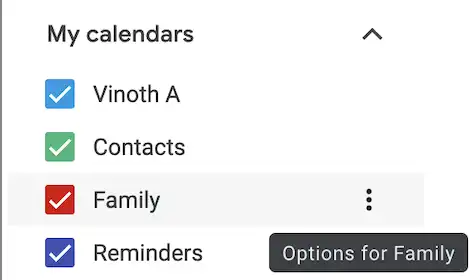
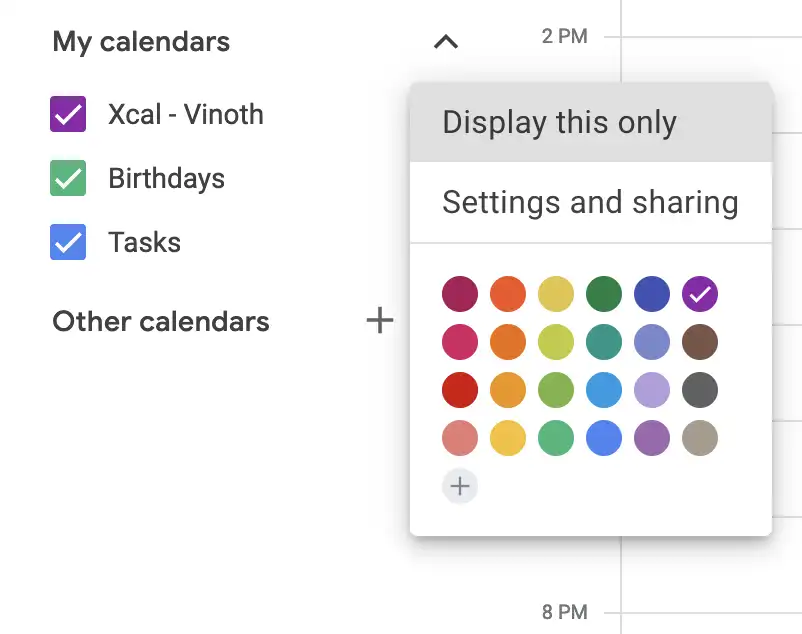
In the left sidebar, hover over the calendar to export and click the three-dot menu. Pick Settings and sharing.
-
Scroll down to Export calendar and click Export.
If Export is missing, your account doesn’t own this calendar (you have view-only or limited access) or your Google Workspace admin has disabled exports.

-
Google downloads a
.zipcontaining one.icsper calendar you own. Unzip it and identify the.icsmatching the calendar you want to merge in.
By default, Google’s export covers events from the past year forward. Older events are dropped. If you need a longer history, scroll back in the source calendar to verify events are present, or use Method 3 which doesn’t apply that window.
Step 2: Import into the destination Google account
-
Sign out of the source account and sign in to the destination one (or open a new browser profile / incognito window to avoid mixing them up).
-
Click the gear icon in the top-right and pick Settings.
-
From the left menu, click Import & export.
-
Click Select file from your computer, pick the
.icsyou extracted. -
From the Add to calendar dropdown, choose the destination — pick a dedicated calendar (e.g., “Personal merged in”) rather than your primary, so a mistaken re-import can be cleaned up by deleting that one calendar without losing native events.
-
Click Import.
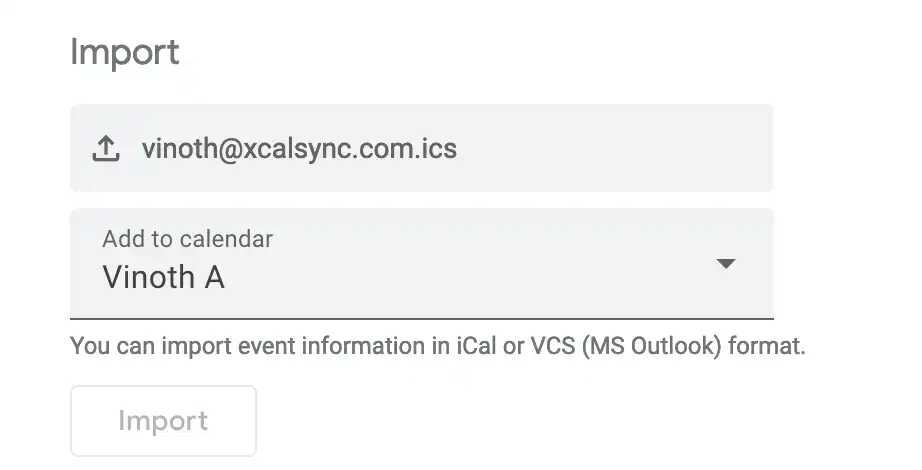
Google reports the number of events imported once it finishes.
Make it a two-way merge
The above is one-way: source → destination. To get events flowing the other way too, repeat the entire process with the accounts swapped: export from the destination, sign in to the source, import. You now have both calendars containing the union of events at this moment in time.
What you don’t have: ongoing sync. New events created in either calendar after the export won’t appear in the other. To keep the merge fresh, you’d repeat the export/import every week or so — which gets old fast and creates duplicates if you forget what you’ve already imported.
Method 3: Automatic sync between Google accounts
For ongoing real-time sync (without manual re-imports), XCalSync connects both Google accounts via OAuth and keeps them updated:
- Two-way sync: edit a meeting in either account, the change replicates within minutes.
- Selective filtering: only sync events on weekdays, only events in a specific time range, only events with certain attendees, skip “free” or “tentative” status events.
- Title rewriting: replace personal event titles with “Busy” in the work calendar so colleagues see availability without reading personal details.
- Buffer time: add a 15-minute buffer before or after copied events.
- No URL leakage: connects via OAuth, not public ICS URLs, so there’s nothing to rotate or hide.
Setup:
- Sign up at app.xcalsync.com.
- Click Add account → Google, sign in to the first Google account, grant calendar access.
- Click Add account → Google again, sign in to the second account.
- Create a SyncPair: source calendar → destination calendar, direction (one-way or two-way), filters.
- Save. The first sync runs immediately.
The free tier covers a single SyncPair. Paid plans start at $4/month for two calendars or $8/month for up to ten.
Troubleshooting
Export option is missing
Either the calendar isn’t owned by your account (view-only access doesn’t grant export), or your Google Workspace admin has turned off the Allow users to export calendars policy. There’s no client-side fix for the latter — ask your admin or use a tool that authenticates with the Google Calendar API directly.
Imported events appear duplicated
Re-importing the same .ics creates duplicates because Google doesn’t dedupe on import. If you’ve already imported once and want to re-run, first delete the destination calendar (or the imported events) before re-importing. Use a separate destination calendar specifically for imports so you can drop and recreate it cleanly.
Recurring events show only one occurrence
A recurrence rule didn’t survive the export/import. Most often this is because the source event has custom exceptions (“every Monday except the second one in November”). Edit the original to a simpler recurrence pattern, re-export, re-import.
Times are off by N hours
Time-zone mismatch between the source account, the destination account, and the events themselves. The .ics carries the source’s time-zone interpretation; if the destination Google account uses a different time zone, events shift. Set both accounts to the same time zone before importing if exact times matter.
Events older than a year are missing
Google’s export defaults to events from the past year. To pull older events, scroll back in the source calendar before exporting (Google adapts the export window based on what’s loaded), or use a sync tool that doesn’t apply this default.
Subscribed calendar refreshes too slowly
Google fetches subscribed calendars on its own schedule, typically 8–24 hours. There’s no manual refresh button. If you need faster updates, stop using subscription and switch to a real sync.
What manual merge doesn’t give you
The export/import method is fine for a one-time consolidation. It falls down for ongoing use:
- It’s a snapshot. Future events don’t propagate.
- It’s lossy. Recurrence exceptions, attendee responses, color labels, and Google-specific event metadata don’t always round-trip.
- It’s all-or-nothing. No filtering by event type, day, or attendee.
- It accumulates duplicates. Re-running the merge without first deleting the previous import leaves you with two of every event.
If those limitations matter — they do for most people who need cross-account scheduling visibility — XCalSync automates the merge with filters and field control. Free to try, no credit card required.
Frequently asked questions
- Yes — but the built-in merge is a one-time import, not an ongoing sync. Use the Export/Import flow in this guide. For automatic ongoing sync between accounts, you need a tool like XCalSync because Google doesn't natively keep two separate accounts in step.
- Add the second calendar to the first account by clicking the + next to Other calendars and choosing Subscribe to calendar (paste the secret iCal URL) or Browse calendars of interest. The events show in a single overlay view but each event still belongs to its source calendar.
- Importing the same .ics twice creates duplicates because Google doesn't dedupe on import. Always import into a dedicated destination calendar (not your primary), so a mistaken re-import can be undone by deleting that one calendar.
- By default yes, but Workspace admins can disable it. If the Export option is missing in your calendar settings, your admin has turned off the 'Allow users to export calendars' policy. There's no end-user override — you'd need admin approval or a sync tool that uses the Calendar API directly.
- Not with Google's built-in tools. The Export/Import flow always copies the entire calendar. To sync only events on certain days, with certain titles, or with certain attendees, you need an event-aware tool like XCalSync.
- Merging copies events into the destination calendar — they become editable native events on that account. Subscribing adds a read-only overlay; the events appear in your view but still 'live' in the source account, can't be edited, and may refresh slowly. Merging is one-time and creates duplicates if repeated; subscribing is ongoing but read-only.
- Most do. Failure modes are usually around recurrence with custom exceptions or all-day events near time-zone boundaries. Spot-check a recurring meeting after the import — if it shows only one occurrence instead of a series, the recurrence rule didn't survive the export.
- Use a sync tool like XCalSync. Connect both Google accounts via OAuth, create a SyncPair, pick direction (one-way or two-way), and the sync runs on a schedule. Built-in Google Calendar features only support one-time imports or read-only subscriptions, not bi-directional automatic sync between accounts.