
How to Sync and Merge Multiple Outlook Calendars (2026 Guide)
·
It’s normal to end up with two Outlook calendars — usually a personal @outlook.com and a Microsoft 365 work or contractor account. Each calendar’s attendees only see what’s on theirs, so the people scheduling meetings against your work account have no way to know about the dentist appointment on your personal one. This is how double-bookings happen.
This guide covers the three ways to merge or sync multiple Outlook calendars in 2026, when each makes sense, and the gotchas that catch people most often — Microsoft 365 sharing policies, recurring events, and what happens to attendees and replies.
Quick answer
- Overlay (Add from directory or subscribe): see another Outlook calendar inside your primary view. Read-only on the source. Works best within one tenant.
- One-time merge (publish/import): copy events from one Outlook calendar into another. Editable in both, but no ongoing sync.
- Automatic two-way sync: a tool like XCalSync keeps two Outlook calendars in step (or Outlook ↔ Google), with filters and field controls. Required for cross-account real-time sync.
If both calendars live in the same Microsoft 365 tenant, Method 1 is the cleanest. For a personal + work split, jump to Method 2 (one-time) or Method 3.
Doing this with Google calendars instead? See How to sync and merge multiple Google calendars.
Going across platforms? See How to sync your Outlook Calendar with Google or How to sync Google Calendar to Outlook.
Method 1: Overlay or “Add from directory”
If both calendars belong to the same Microsoft 365 tenant (e.g., two work accounts at the same company), the cleanest path is to add the second calendar to the first’s view:
- In Outlook on the web, open Calendar.
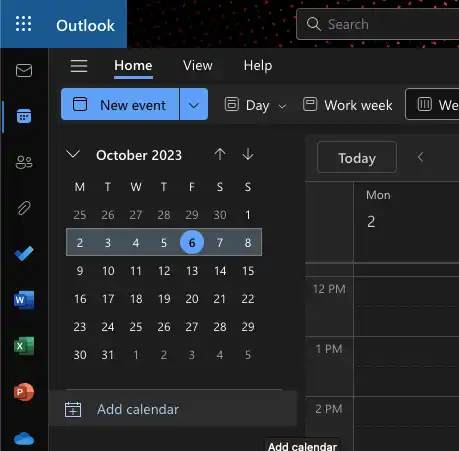
- In the sidebar, click Add calendar.
- Choose Add from directory if both accounts are in the same Microsoft 365 organization. Search for the second user, pick their calendar.
The second calendar appears under People’s calendars in your sidebar. Visibility into event details depends on the second user’s sharing settings — by default Outlook 365 shares free/busy only.
For calendars in different tenants or a personal + work split, use Subscribe from web with a published ICS URL:
- On the source calendar, follow steps 1–4 of Method 2 Step 1 but stop after copying the ICS link rather than downloading.
- On the destination Outlook account, open Calendar → Add calendar → Subscribe from web.
- Paste the ICS URL, name the calendar, click Import.
The destination now sees the source events as a read-only overlay, refreshing roughly every 3 hours. Events can’t be edited, accepted, or moved from the destination side.
This is the right choice when:
- You only need one user (you) to see both at once.
- You don’t need attendees on the destination side to see your busy times across both calendars.
- Read-only access is sufficient.
If you need attendees on the destination calendar to see your full availability across both, or you need to edit imported events, skip to merge or sync.
Method 2: Merge with publish and import
This copies events from one Outlook calendar into another so they appear as native, editable events on the destination. Useful when:
- You’re consolidating a deprecated or contractor calendar into your primary.
- You need others booking against either calendar to see your full availability.
- The two calendars are in separate tenants and “Add from directory” isn’t available.
It’s a one-time copy — Outlook doesn’t keep the calendars in step after the import.
Step 1: Publish the source Outlook calendar
The publish flow lives in Outlook on the web. The desktop client has a separate Save Calendar export that’s useful for date-range exports — covered below.
-
Sign in to the source account at outlook.com and open Calendar.
-
Click the gear icon in the top-right and pick Calendar settings.
-
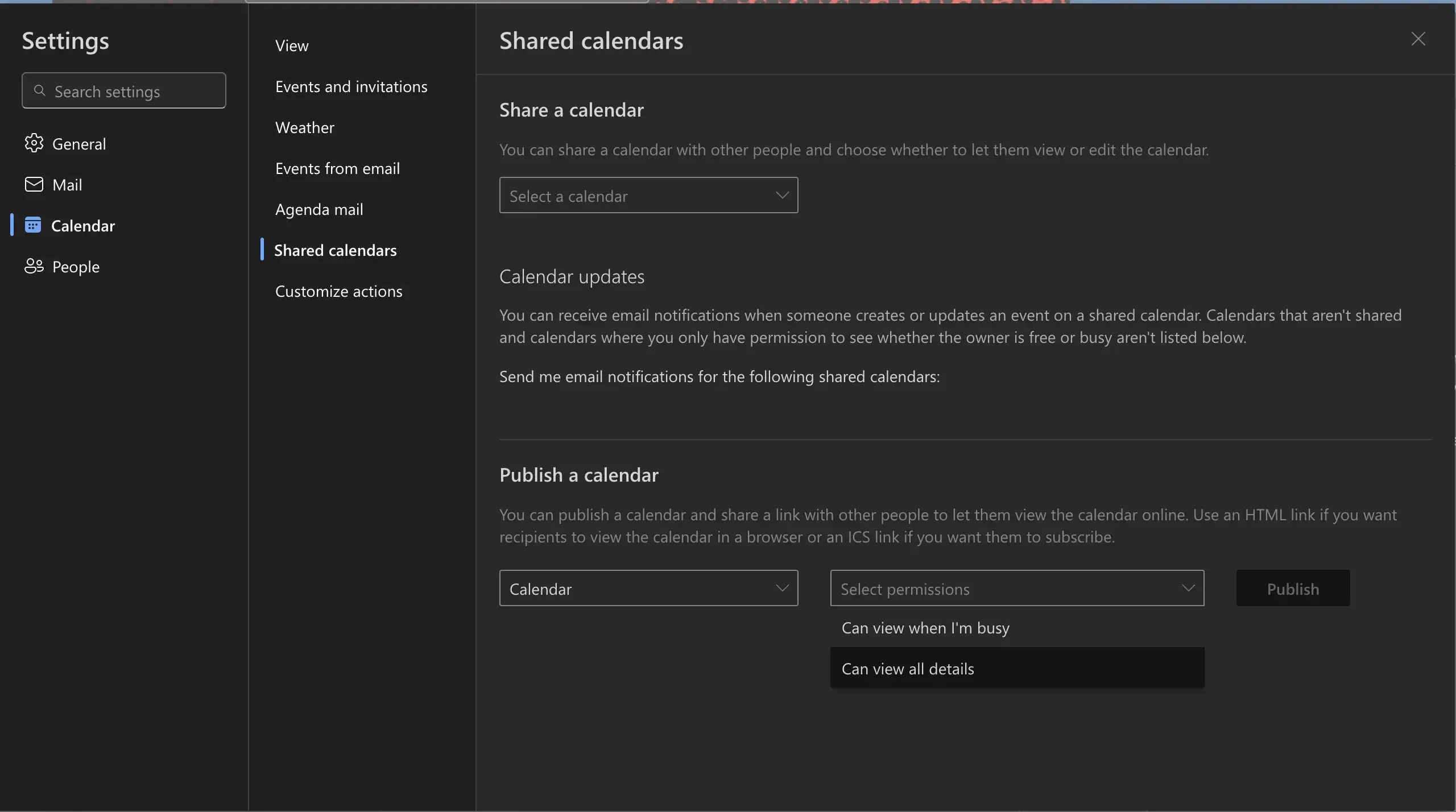
From the left menu, choose Shared calendars.
-
Under Publish a calendar, pick the source calendar, set permissions to Can view all details, and click Publish.
-
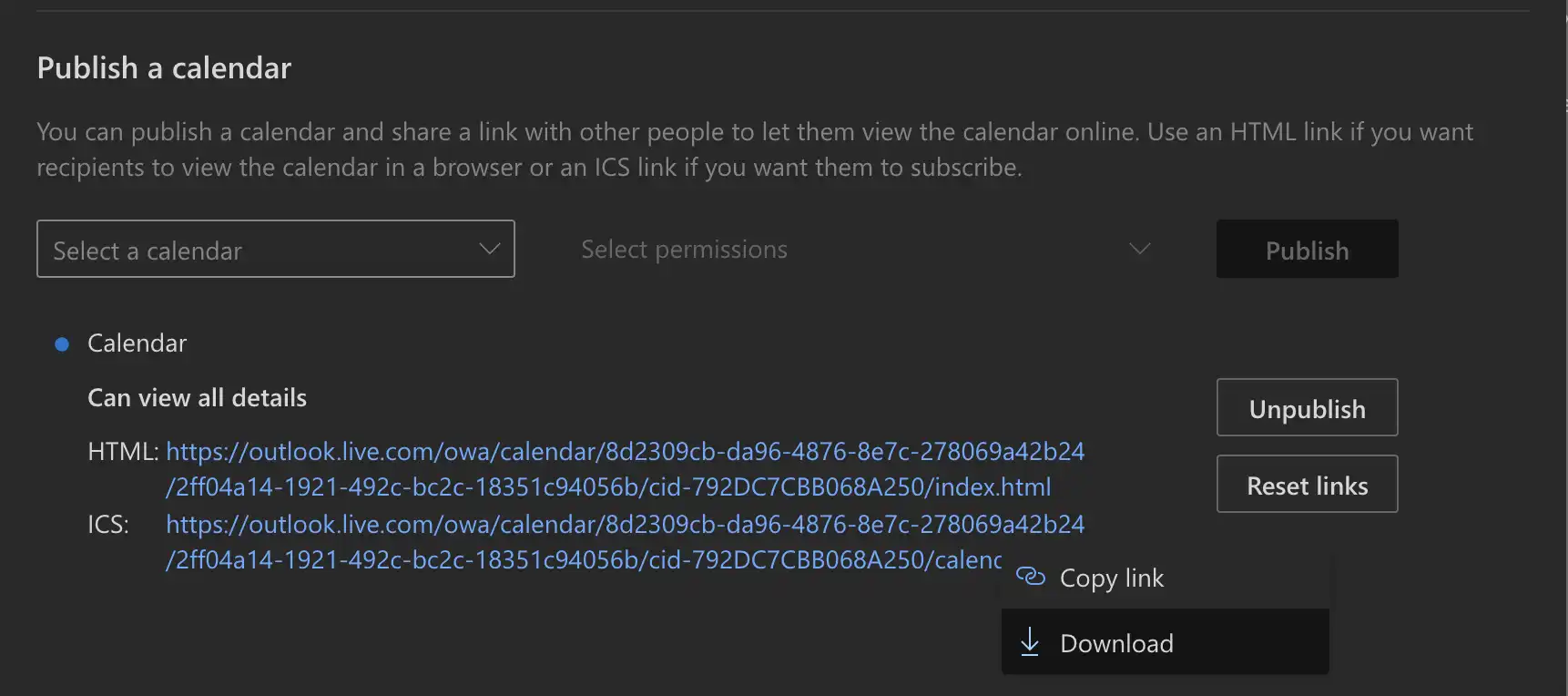
Outlook generates two URLs — HTML and ICS. Click the ICS link and choose Download.
-
A
.icslands in your Downloads folder. Rename it (outlook-source-2026-05-08.ics) so you can find it.
Privacy note: the published ICS URL is unguessable but unauthenticated. Anyone who gets the URL can read every event. Once the import is done, return to Shared calendars and click Unpublish to invalidate the link.
If “Publish a calendar” is greyed out, your Microsoft 365 tenant has disabled external publishing. Either ask IT to allow it for your account or use the desktop alternative below.
Outlook desktop alternative (date-range export)
- Open Outlook desktop and switch to Calendar.
- File → Save Calendar.
- Choose iCalendar Format (*.ics) and click More Options.
- Set the date range and detail level (Full details to preserve attendees and bodies).
- Save the file somewhere obvious.
This bypasses the tenant’s web publishing policy because it doesn’t generate a public URL. The tradeoff is that you can’t subscribe to it — it’s a one-time file export only.
Step 2: Import into the destination Outlook account
-
Sign out of the source account and sign in to the destination at outlook.com, or open a private/incognito browser window to avoid mixing them up.
-
Open Calendar.
-
In the sidebar, click Add calendar.
-
Choose Upload from file.
-
Click Browse, pick the
.icsfrom Step 1, and choose the destination calendar from the dropdown — pick a dedicated destination (e.g., “Imported from old account”), not your primary, so a mistaken re-import can be cleaned up by deleting that one calendar.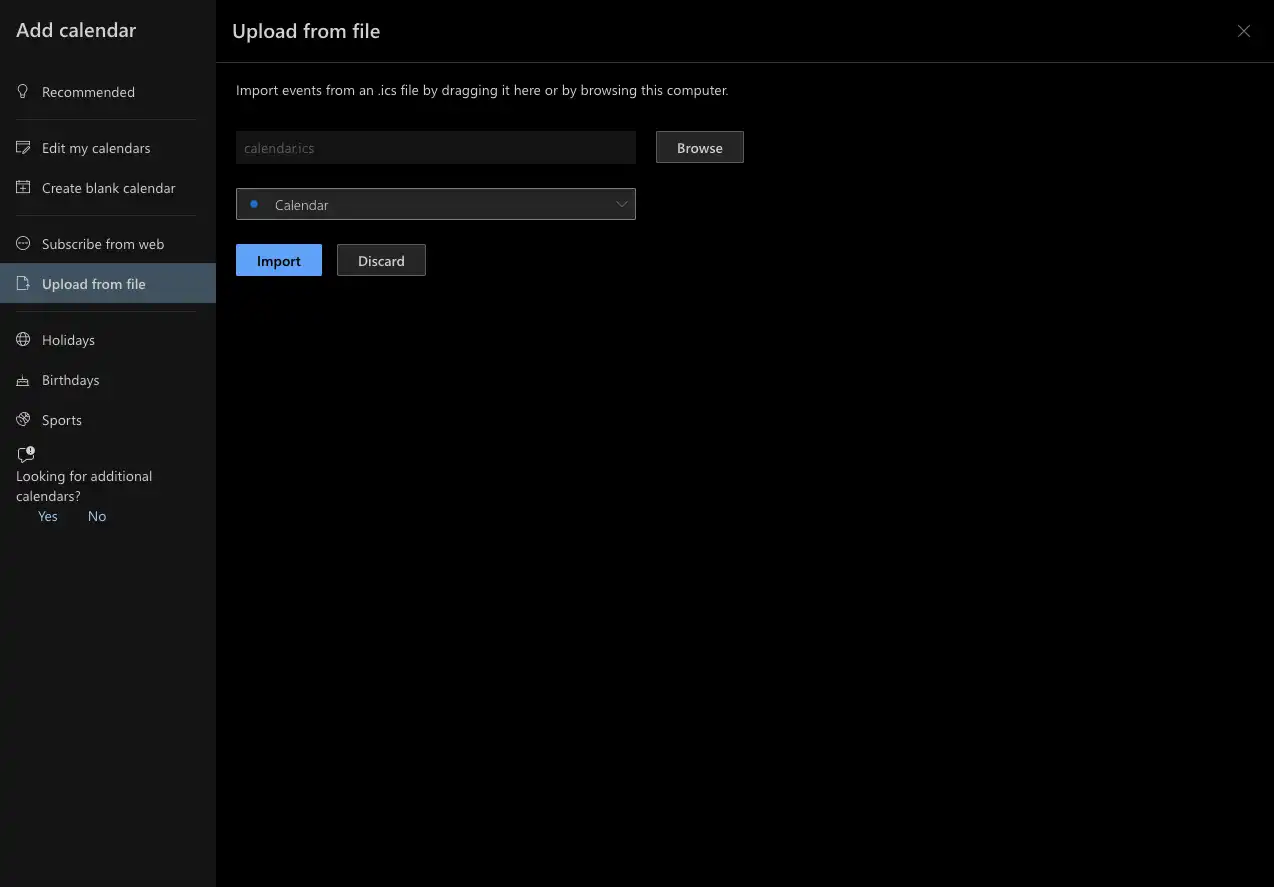
-
Click Import.

Outlook reports the number of events imported once it finishes. Check a sample of recurring meetings — those are the most likely to misbehave.
Make it a two-way merge
The above is one-way. For both calendars to contain the union of events, repeat the process with the accounts swapped. You now have a snapshot merge in both directions — but no ongoing sync.
Method 3: Automatic sync with XCalSync
For ongoing real-time sync (without manual re-imports or worrying about duplicate runs), XCalSync connects both Outlook accounts via OAuth and keeps them updated:
- Two-way sync: edit a meeting in either account, the change replicates in minutes.
- Cross-tenant: works across personal
outlook.comand Microsoft 365 work/school, and across both with Google. - Selective filtering: only sync events on weekdays, only events matching certain titles, skip “tentative” or “free” events.
- Title rewriting: replace personal event titles with “Busy” in the work calendar.
- Buffer time: add a configurable buffer before or after copied events.
- No URL exposure: connects via OAuth (Microsoft Graph), no public ICS URLs to leak or rotate.
Setup:
- Sign up at app.xcalsync.com.
- Click Add account → Outlook, sign in to the first Outlook account, grant calendar access.
- Click Add account → Outlook again for the second account.
- Create a SyncPair: source calendar → destination calendar, direction (one-way or two-way), filters.
- Save. The first sync runs immediately.
The free tier covers a single SyncPair. Paid plans start at $4/month for two calendars or $8/month for up to ten.
Troubleshooting
”Publish a calendar” is greyed out
Your Microsoft 365 tenant has external sharing disabled for your account. There’s no client-side fix — either ask IT to enable Outlook calendar publishing for your account, or use the desktop Save Calendar export to bypass tenant publishing rules. Authenticated sync tools (XCalSync) go through Microsoft Graph and aren’t affected by the publishing policy.
Imported events appear duplicated
Re-importing the same .ics creates duplicates because Outlook doesn’t dedupe on import. If you’ve already imported once and need to re-run, first delete the destination calendar (or the imported events) before re-importing. This is why we recommend importing into a dedicated calendar — you can drop and recreate it cleanly.
Recurring events show only one occurrence
The recurrence rule didn’t survive the export/import. Most often this is because the source event has custom exceptions (“every Monday except the second one”). Edit the original to a simpler recurrence pattern, re-publish, and re-import.
Events appear at the wrong time
Time-zone mismatch between the source and destination accounts. The .ics carries the source’s time-zone interpretation; if the destination Outlook account uses a different time zone, events shift. Set both accounts to the same time zone before importing if exact times matter.
Subscribed calendar refreshes too slowly
Outlook fetches subscribed calendars roughly every 3 hours. There’s no manual refresh button. If you need faster updates, stop using subscription and switch to a real sync tool.
Workspace IT blocks the import
If your Microsoft 365 tenant restricts both publishing and external file uploads, the manual flows are out. Your only option is an authenticated sync tool (XCalSync) that uses Microsoft Graph to read and write calendar events — most tenants allow third-party calendar apps via OAuth even when they restrict ICS sharing.
What manual merge doesn’t give you
The publish/import method is fine for a one-time consolidation. It falls down for ongoing use:
- It’s a snapshot. New and edited events don’t propagate.
- It’s lossy. Recurrence exceptions, attendee responses, and Microsoft-specific event metadata (Teams meeting links) often don’t round-trip.
- It’s all-or-nothing. No filtering by event type, day, or attendee.
- It accumulates duplicates. Re-running without deleting the previous import doubles every event.
- It exposes everything. ICS files include event titles, locations, attendees, and bodies — full content of every event in the published calendar.
If those limitations matter — they do for most people maintaining two active Outlook accounts — XCalSync automates the merge with filters, field control, and authenticated access. Free to try, no credit card required.
Frequently asked questions
- Outlook on the web can subscribe to a published ICS URL from another Outlook calendar for read-only updates, but the refresh is delayed by hours and the events can't be edited from the destination. For two-way sync where edits replicate in either direction, you need a third-party tool like XCalSync.
- If both are in the same Microsoft 365 tenant, the easiest path is to add the second calendar from the directory: in Outlook, Add calendar → Add from directory → search for the user. For separate tenants or a personal-plus-work combination, use the export/import flow in this guide or a sync tool.
- Maybe. External calendar publishing is governed by the tenant's sharing policy. If 'Publish a calendar' is greyed out in your settings, the admin has restricted it. Most enterprises restrict publishing to non-organizational addresses by default — ask your admin to enable it, or use an authenticated sync tool that connects via Microsoft Graph instead.
- The published ICS in Outlook on the web typically includes events from the past year and a configurable window into the future. If older history is missing, the published-calendar window is the cause. Outlook desktop's File → Save Calendar lets you pick an exact date range to bypass this default.
- Yes, and this is one of the most common reasons people search for this. Both support ICS publishing and importing, so the flow in this guide works. Your work admin must allow external sharing — if 'Publish a calendar' is missing on the work side, that's the blocker.
- Most do. Failure modes are around recurrence with custom exceptions and series spanning a daylight-saving change. Spot-check a recurring meeting after import and adjust the source if needed.
- No. Imported events are local copies — they don't trigger invites or RSVPs in the destination. The original Outlook attendee list is preserved as text but no longer linked to the meeting in the source. Replies stay on the source side.
- Use a sync tool like XCalSync. Connect both Outlook accounts via OAuth (works across personal outlook.com and Microsoft 365 work/school), create a SyncPair, pick direction (one-way or two-way), and the sync runs every few minutes. Built-in Outlook only supports one-time imports or read-only subscribes — not bi-directional automatic sync between accounts.